Guide
How to export Instagram followers to Excel.
Updated · By the ProfileMira team
The short answer
Instagram has no “export to Excel” button. For your own account, request your followers with Instagram's free “Export your information” tool and open the JSON file in Excel with Power Query.
For any other public account, use a follower export tool. In ProfileMira you enter the username, review the followers in a gallery, and download an Excel, CSV or JSON file. No Instagram login is involved.
The three ways to do it
Which method fits depends on one question: whose followers do you need? Instagram only exports your own. Everything else needs a third-party tool, and those differ in what they ask of you.
| Method | Whose followers | What it needs | What you get |
|---|---|---|---|
| Instagram's “Export your information” | Your own account only | Your Instagram login, and a wait for Instagram to prepare the file | JSON or HTML files to convert yourself |
| A browser extension or script | Accounts you can open while logged in | Your logged-in Instagram session in the browser | Usually a CSV file, depending on the tool |
| A server-side tool such as ProfileMira | Any public account | A ProfileMira account; no Instagram login | Excel (.xlsx), CSV or JSON, ready to open |
Browser extensions work inside your own Instagram session, so the requests are made as you. Instagram rate-limits that kind of activity, and some extension listings themselves suggest using a separate account. Read an extension's permissions before you install it.
Method 1: your own followers, from Instagram
Instagram lets you export a copy of your own information, including your followers and the accounts you follow. On a computer, the steps in Instagram's Help Center are:
- Click More in the bottom left, then Settings.
- Open Accounts Center (shown as Meta Account on some accounts), then Your information and permissions.
- Click Export your information, then Create export, and choose your profile.
- Choose Export to device. Customise the export to include only Followers and following, and choose the JSON format.
- Click Start export. Instagram notifies you when the file is ready. It says this can take up to 30 days, and the download then stays available for 4 days.
Opening the JSON file in Excel
Unzip the download and look for the followers file, usually named like followers_1.json inside a followers and following folder. In Excel for Microsoft 365:
- Go to Data → Get Data → From File → From JSON and select the file.
- In the Power Query editor, choose To Table, then use the expand buttons on the column headers until each follower has its own row.
- Keep the username, link and timestamp columns, then click Close & Load.
Each entry usually holds a username, a profile link and a Unix timestamp of when that account followed you. Instagram has changed this layout before, so the field names you see may differ. To turn the timestamp into a date, use a formula like this one and format the cell as a date:
Excel: Unix timestamp in A2 to a date
=A2/86400+DATE(1970,1,1)This route is free and official, but it only covers your own account, and the list holds usernames only: no display names, and no verified or private flags.
Method 2: any public account, with ProfileMira
ProfileMira collects the followers of a public account on its own servers, so you never connect your Instagram account or install an extension. The screenshots below are the real interface, shown with synthetic demo data.
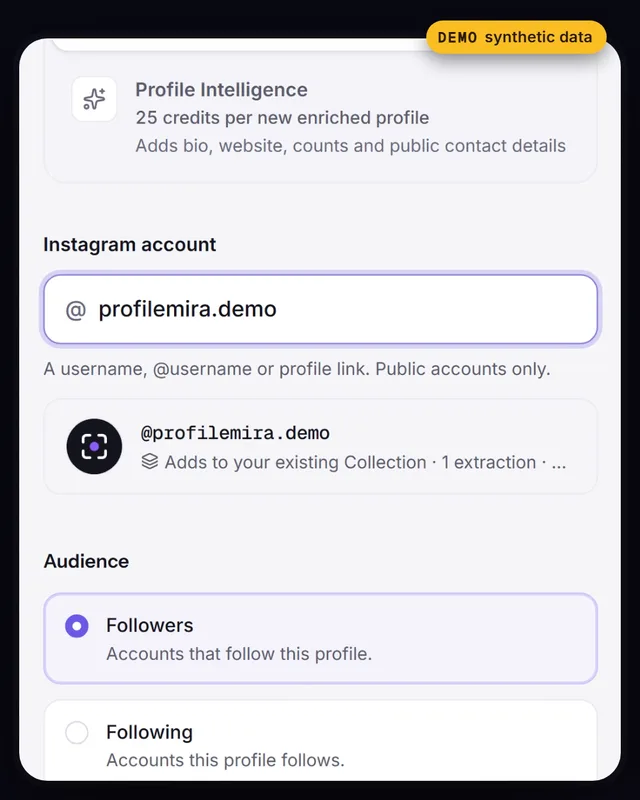
1. Enter the account and choose Followers
Paste a username, @username or profile link, choose Followers (or Following), and set how many profiles you want, or All available on a paid plan. The credit cost is shown before the run starts: 1 credit per profile for Standard extraction.
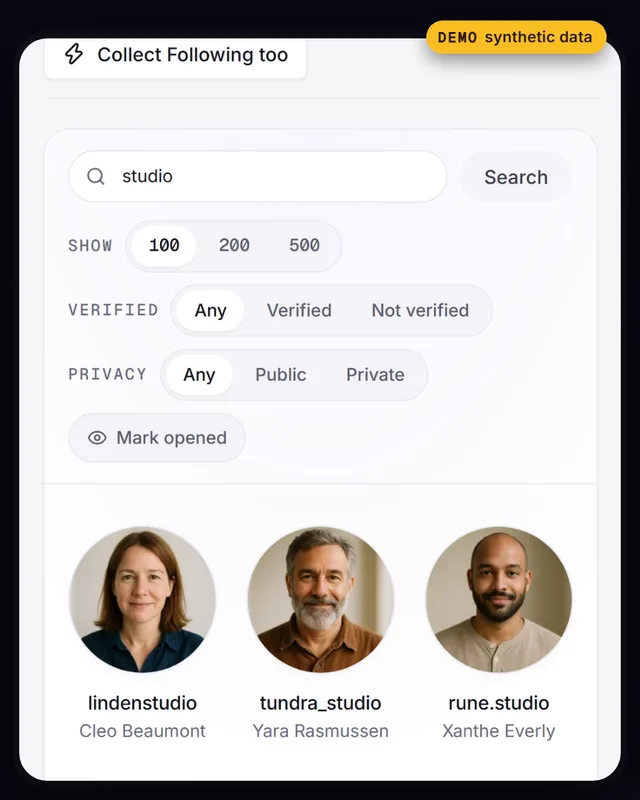
2. Review the list before you download it
Collected profiles appear in a gallery of photos, usernames and names. Search by name, and filter by Verified and Privacy across the whole extraction, not just the page you are looking at.
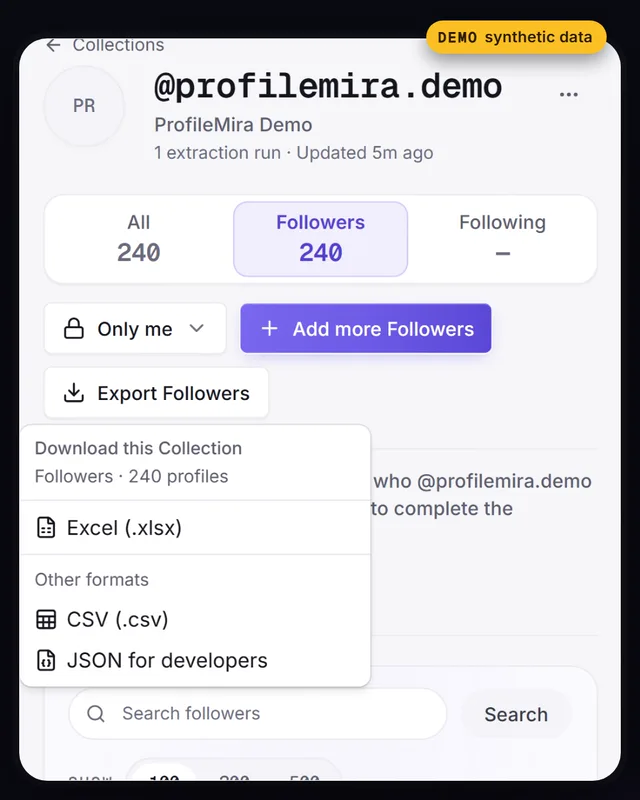
3. Export to Excel, CSV or JSON
Open Export and choose Excel (.xlsx), CSV or JSON. The file is generated when you ask for it and goes straight to your browser; ProfileMira keeps no copy of it.
The free Trial gives you 1,000 one-time Standard credits to run a real extraction and browse the result. Downloading Excel, CSV or JSON files needs a paid plan, from Starter at $29 a month. One extraction can collect up to 15,000 profiles on Starter and up to 100,000 on Scale. See plans and limits.
What the Excel file contains
The Excel workbook has two sheets. Summary names the account and the audience and counts the profiles, including how many are verified and private. Profiles has one row per profile, a frozen header row and a filter on every column:
- #: The row number, in the order profiles were collected.
- Username: The @handle.
- Full name: The display name on the profile.
- Relationship: Follower, Following, or Both when the profile is in both lists.
- Verified: Yes or No.
- Private: Yes or No.
- Instagram: A link to the profile.
Unlike the Excel workbook, the CSV and JSON files carry the raw columns, for importing into other tools: position, instagram_user_id, username, full_name, is_verified, is_private, instagram_url, profile_picture_url. Profile Intelligence exports add public details such as bio, category and follower counts; the export page lists them all.
Working with the list in Excel or Google Sheets
- Excel: open the .xlsx file directly. The filters are already on, so you can show only verified accounts, or only public ones, from the header row.
- Google Sheets: choose File → Import → Upload and select the .xlsx or .csv file.
- CSV and special characters: ProfileMira's CSV is UTF-8 with a byte-order mark, so Excel on Windows shows accented names and emoji correctly when you double-click the file.
- Duplicates across files: match on
instagram_user_idfrom the CSV rather than on the username. Usernames change; the ID does not. - Order: rows are in the order the profiles were collected. That is not the date each account followed; Instagram does not show follow dates for other people's accounts.
To find the followers two accounts share, see how to compare Instagram followers between two accounts.
Limits worth knowing
- Public accounts only. A private account's followers cannot be read, by ProfileMira or anyone else without access.
- Counts can differ. The number exported can be lower than the follower count on the profile. Each extraction reports how it ended; the Support page explains each ending.
- A snapshot, not a feed. The file reflects the moment you collected it. ProfileMira does not monitor accounts or report follows and unfollows.
- Public information, used responsibly. How you use the file is subject to the Terms and the privacy and marketing laws that apply to you. A follower list is not consent to contact the people on it.
Can I export someone else's Instagram followers to Excel?
- Yes, if the account is public. Instagram's own export covers only your account, so you need a tool that collects a public account's followers, such as ProfileMira.
Is there a free way?
- Instagram's export of your own account is free. ProfileMira's free Trial (1,000 one-time Standard credits) lets you extract and browse a public account's followers; downloading the file needs a paid plan.
Can I export the accounts someone follows instead?
- Yes. Choose Following instead of Followers; the file has the same columns. See exporting a following list.
Is ProfileMira an official Instagram tool?
- No. ProfileMira is independent and is not affiliated with, endorsed by or sponsored by Instagram or Meta.
Put a follower list in a spreadsheet.
Start with 1,000 one-time Standard credits. No card required, and no Instagram login.